Hosted SPF
An SPF record is essentially a list of all the IP addresses and mail servers that are allowed to send emails on behalf of a particular domain. It also contains information about whether to pass or fail emails coming from your domain but from an unauthorized IP address.
SPF records use mechanisms to specify how the receiving server handles incoming emails. These are:
- a
- mx
- include
- ptr (not recommended)
- exists
- redirect
Every time your SPF record uses one of the mechanisms mentioned above, it results in a DNS Lookup. In order to prevent Denial of Service (DoS) attacks, the number of DNS lookups per SPF record is limited to 10. Note that the IPv4 and IPv6 mechanisms do not contribute to the 10 DNS lookup limit.
If your organization requires multiple third-party vendors to use your domain to send emails from their separate IP addresses, the number of mechanisms you need to use will increase, and might even go over the limit. The receiving mail server can then fail to authenticate the sending sources you’ve authorized on your SPF record, causing your email to fail the SPF check.
In order to prevent this, PowerDMARC offers a single-click Hosted SPF feature called PowerSPF that uses Macros to optimize your current SPF record to always have fewer than 10 DNS lookups, regardless of how many sending sources you wish to authorize. It’s an easy, instant solution that ensures your emails never fail SPF and fail to be delivered.
How to use Hosted SPF?
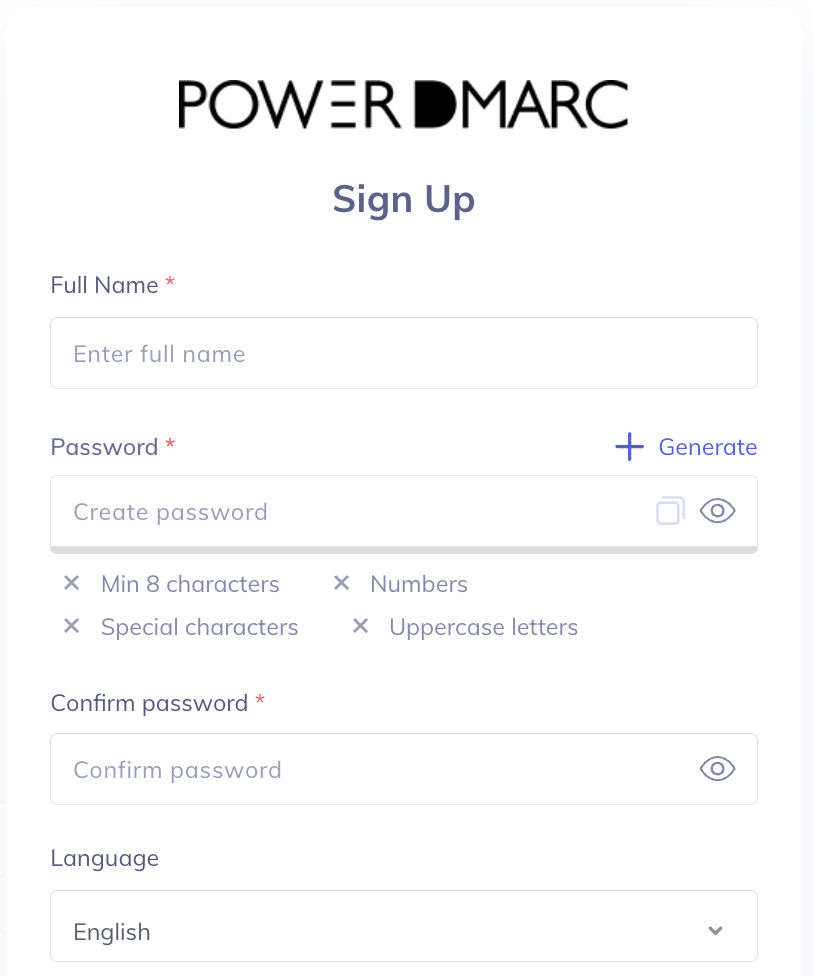
Step 1: The first step to start with your Hosted SPF (PowerSPF) deployment would be to sign up with PowerDMARC to gain access to the PowerDMARC control panel. Hosted SPF (PowerSPF) is available at certain plans. Contact your account manager or our sales team to get the feature enabled.
After signing in, the first view available to you would be the PowerDMARC dashboard.
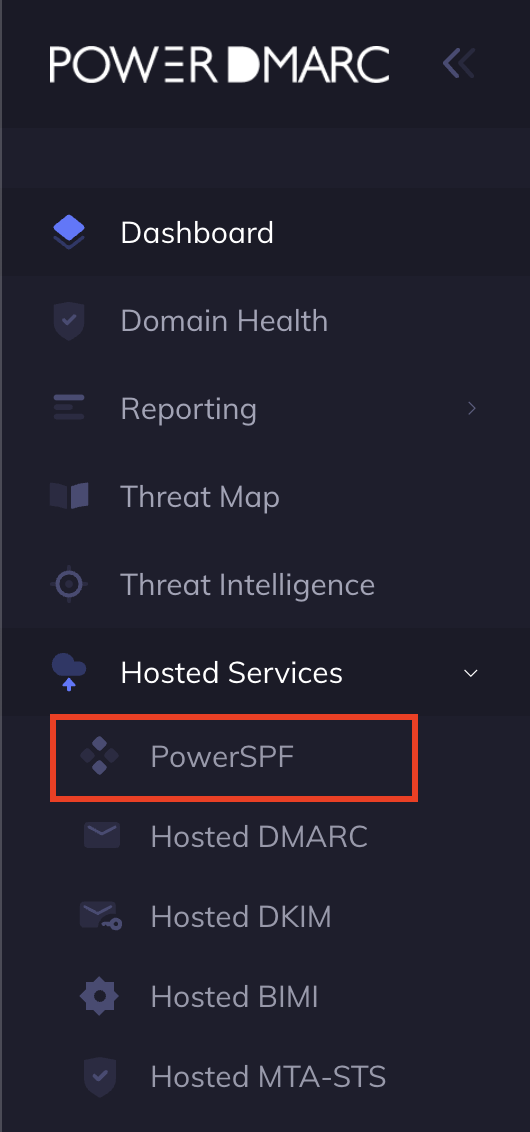
Step 2: On the left-hand side menu displaying the various features, navigate to Hosted Services and click on the Hosted SPF (PowerSPF) tab, as shown below:
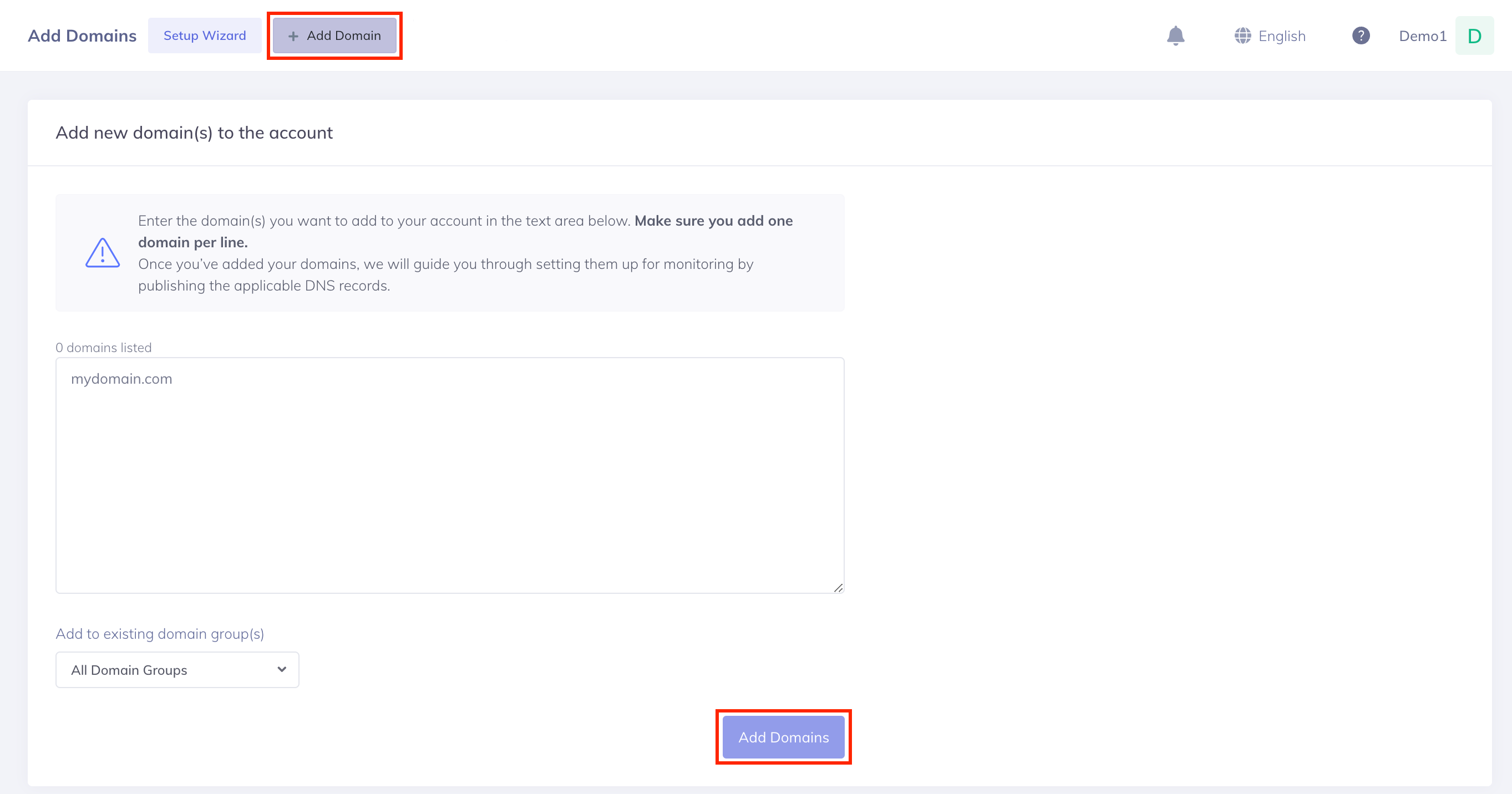
Step 3: Add your domains by clicking on + Add Domain button at the top of the Hosted SPF (PowerSPF) page (If you haven’t added your domain already). Make sure you add only one domain per line.
Once you have added your domain, you have to go ahead and publish the DNS TXT record that we generate for you to configure your domain with Hosted SPF (PowerSPF). For this, follow the steps mentioned below:
Step 1: You can now view your registered active domains on the Hosted SPF (PowerSPF) page by cascading the Active Domain drop-down menu, as shown below:
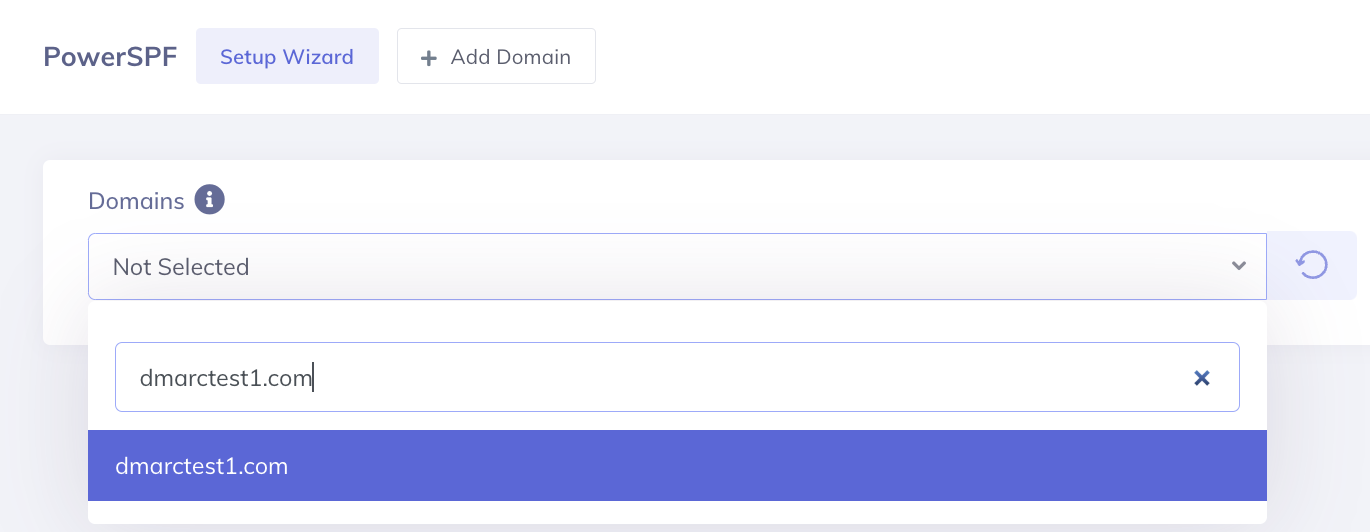
Step 2: As soon as you click on your desired domain from the list, the page will open to display all the current SPF record configurations of that domain, as shown below:
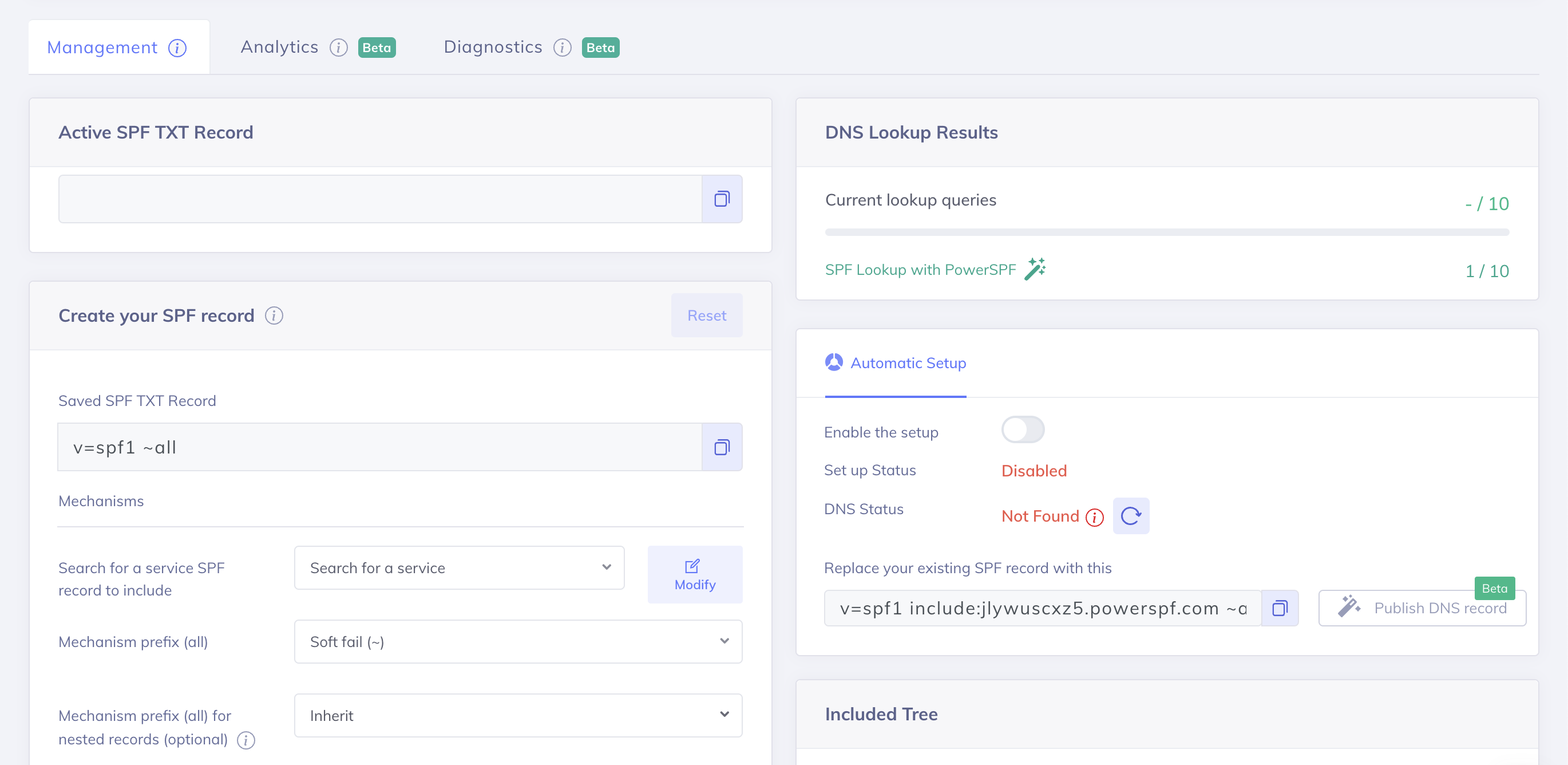
On this page, you can view your active SPF record that is published on your domain’s DNS, all your active mechanisms, and their mode.
Step 3: You can add mechanisms to your SPF record by navigating to the Add new mechanism section.
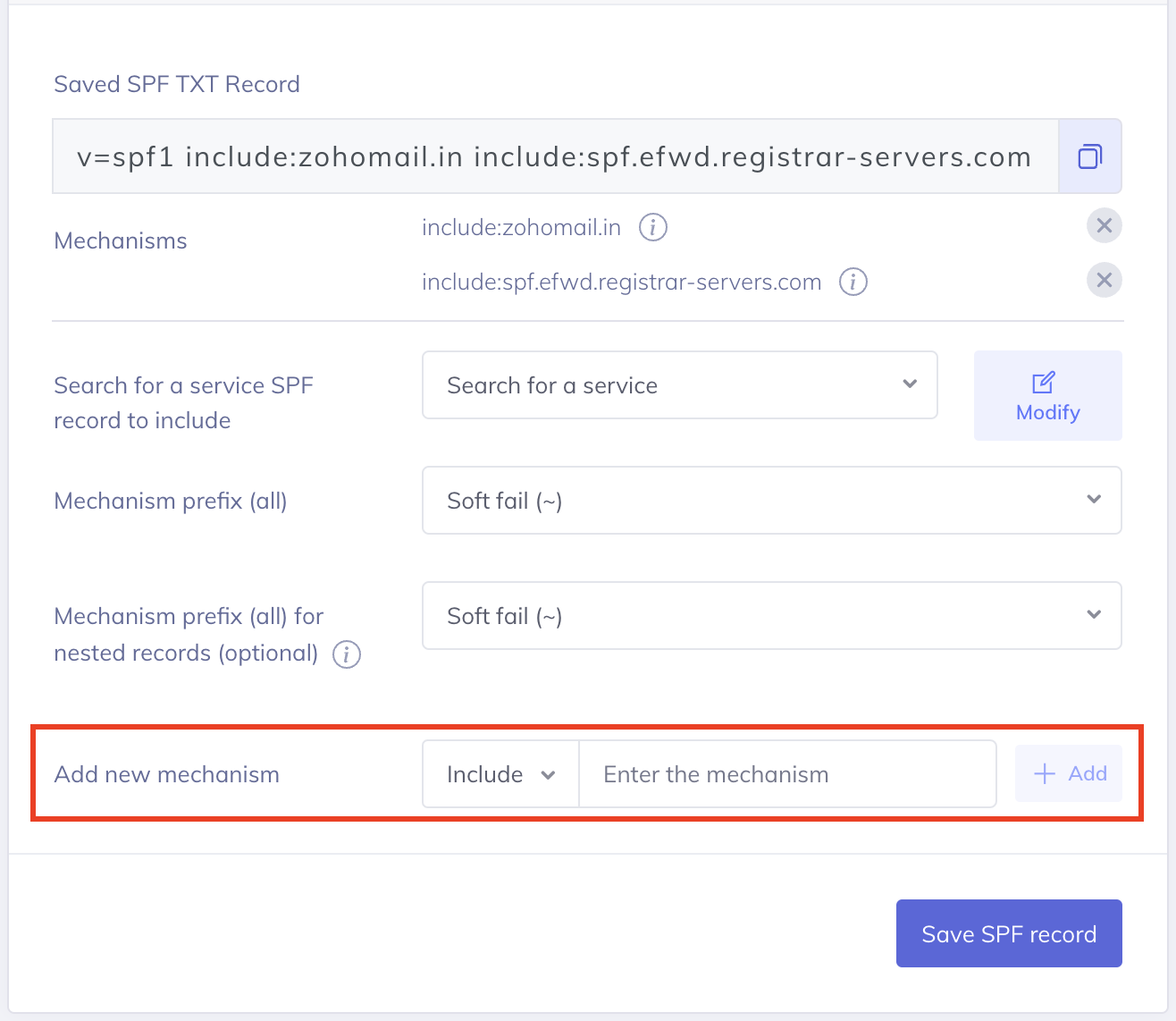
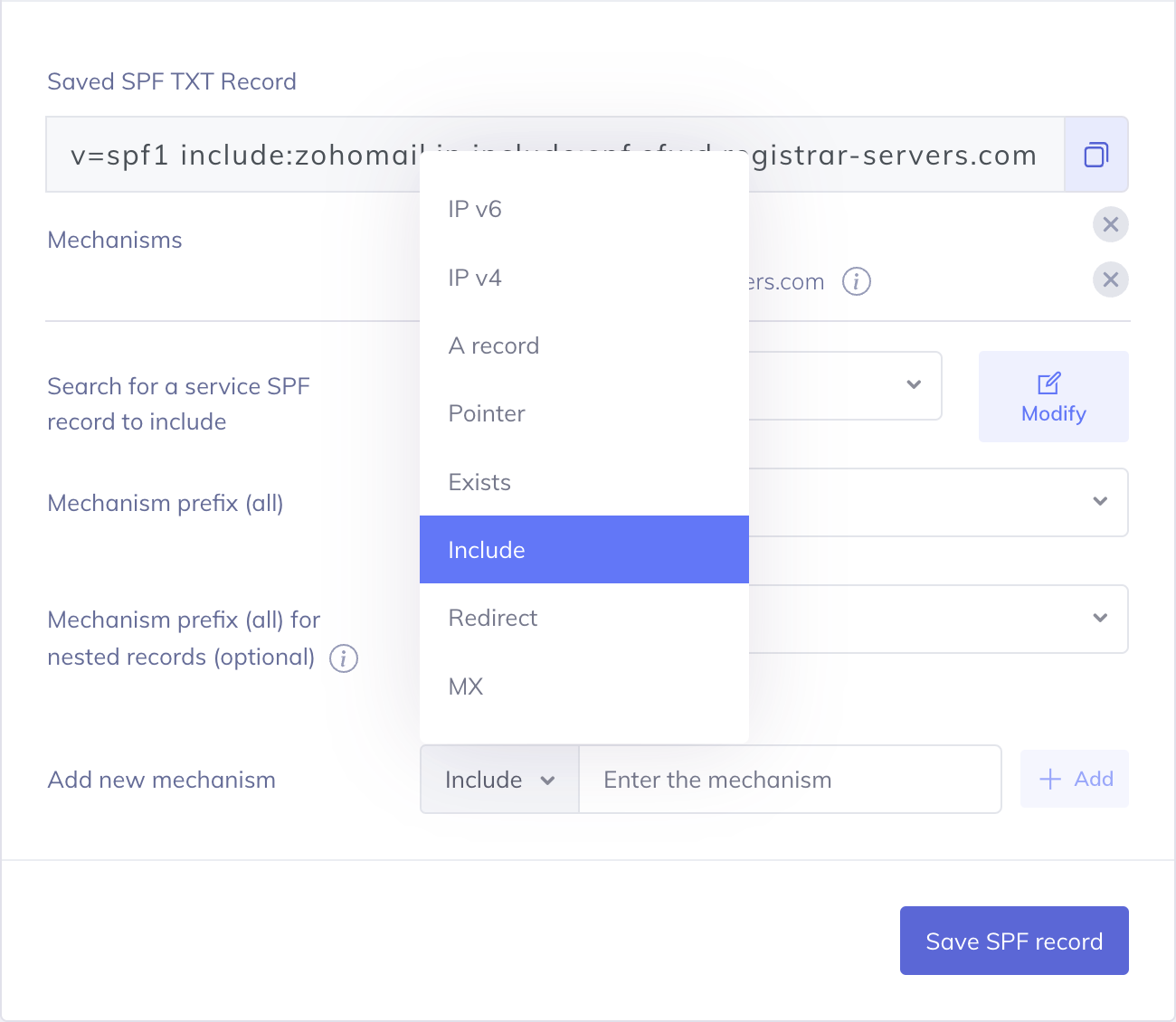
Step 4: Choose the way you want to authorize sending sources on your SPF record by selecting the mechanisms from the cascading menu, as shown below:
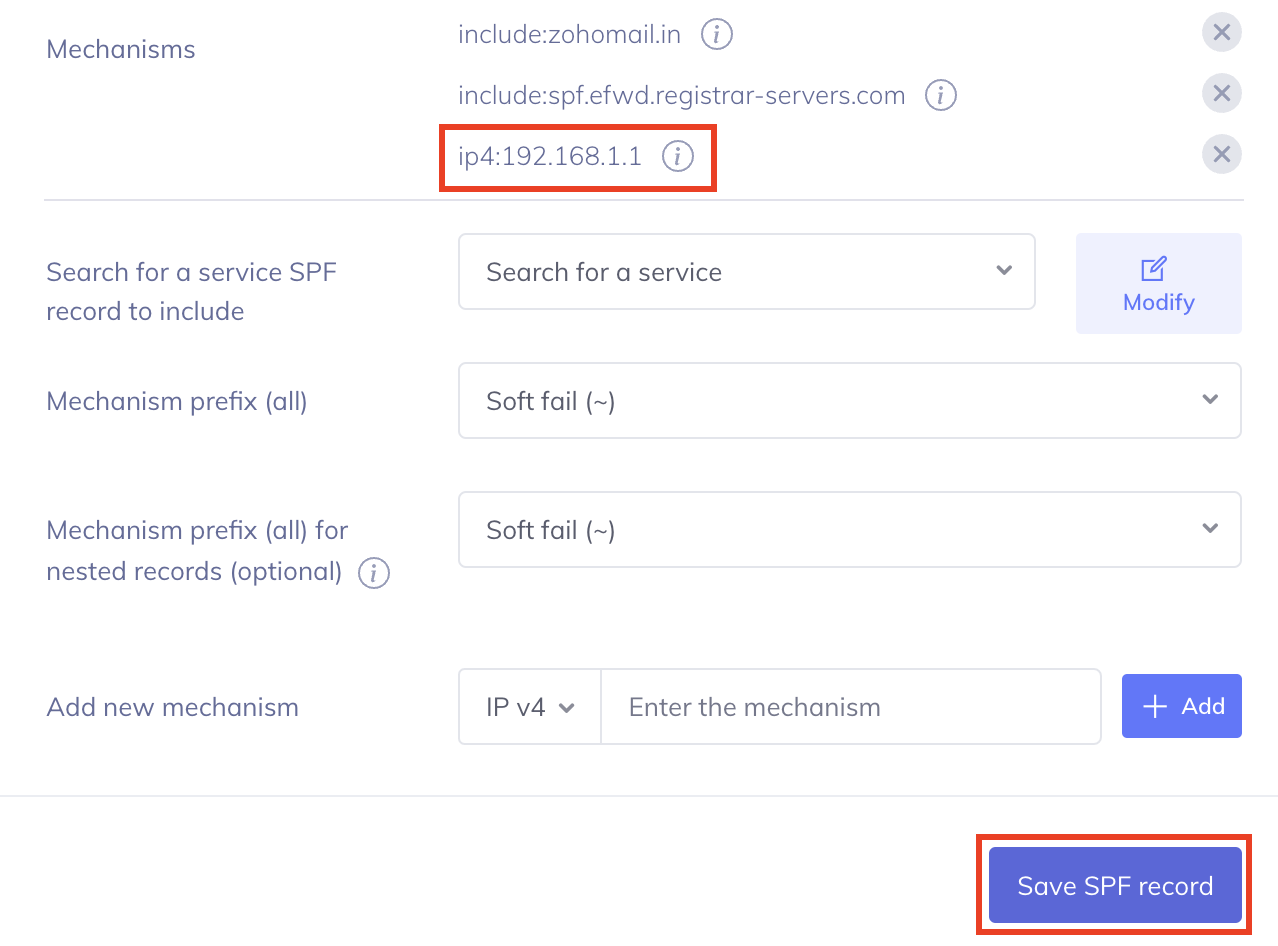
Step 5: After selecting your desired mechanism, for example, IPv4, you’ll have to type in the IP in the blank box and click on the +Add button.
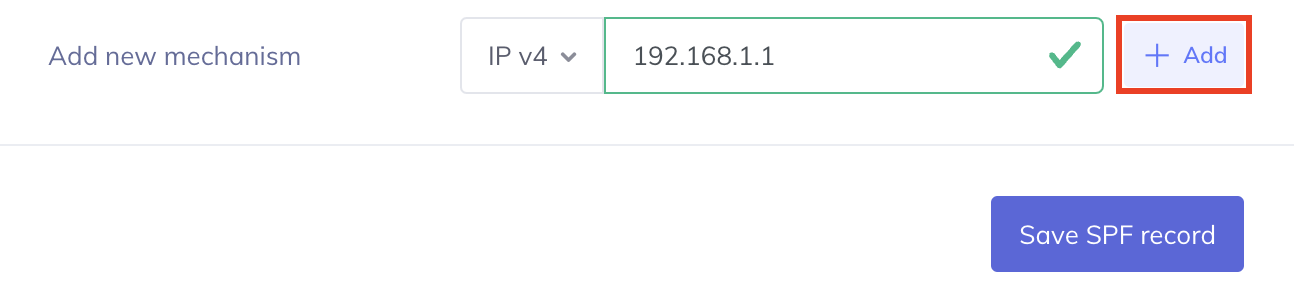
Step 6: You will find that your newly added mechanism is now being displayed in the list of active mechanisms. Now you can go ahead and click on Save SPF record to save changes.
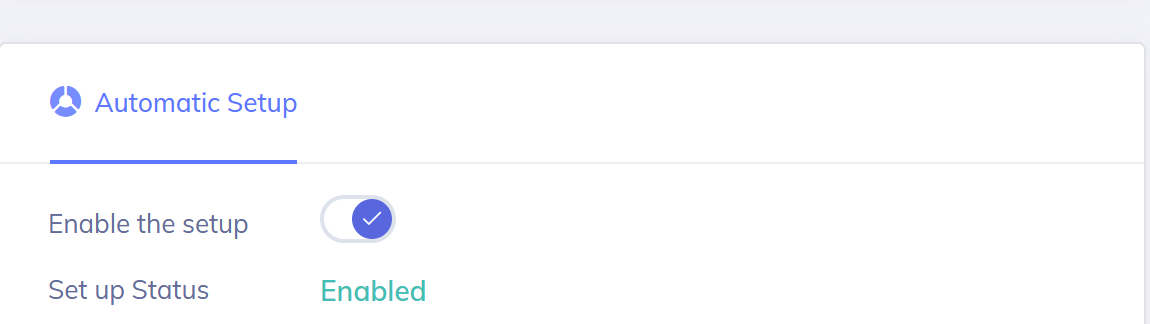
Step 7: Click on the “Enable PowerSPF” button if it isn’t already enabled for your domain.
Note: If PowerSPF is disabled for your domain, you can still add new sources through the portal, and your previous PowerSPF record will still be live on your DNS, but the changes you make will not be reflected on the PowerSPF record.
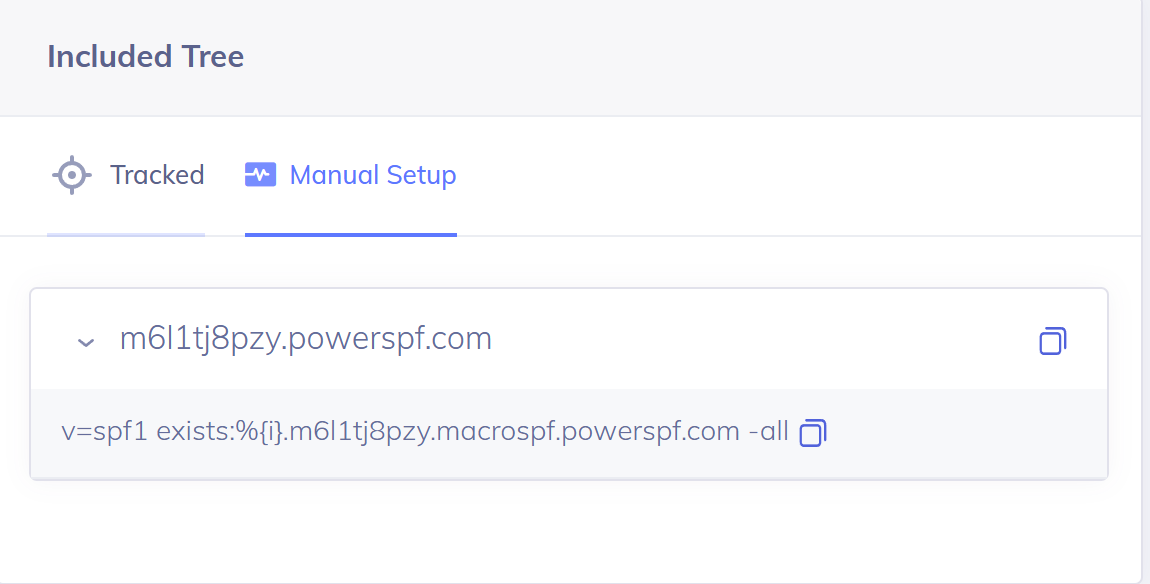
Step 8: Once you save changes and enable HostedSPF (PowerSPF),the changes you made will be reflected in the manually flattened SPF record as shown below:
Deleting a Mechanism
You, as the user, can also delete a mechanism you had previously added by simply navigating to the Mechanisms section on the Hosted SPF (PowerSPF) page and clicking the cross mark adjacent to the desired mechanism you want to remove from your SPF record. Click on Save SPF record to save changes.
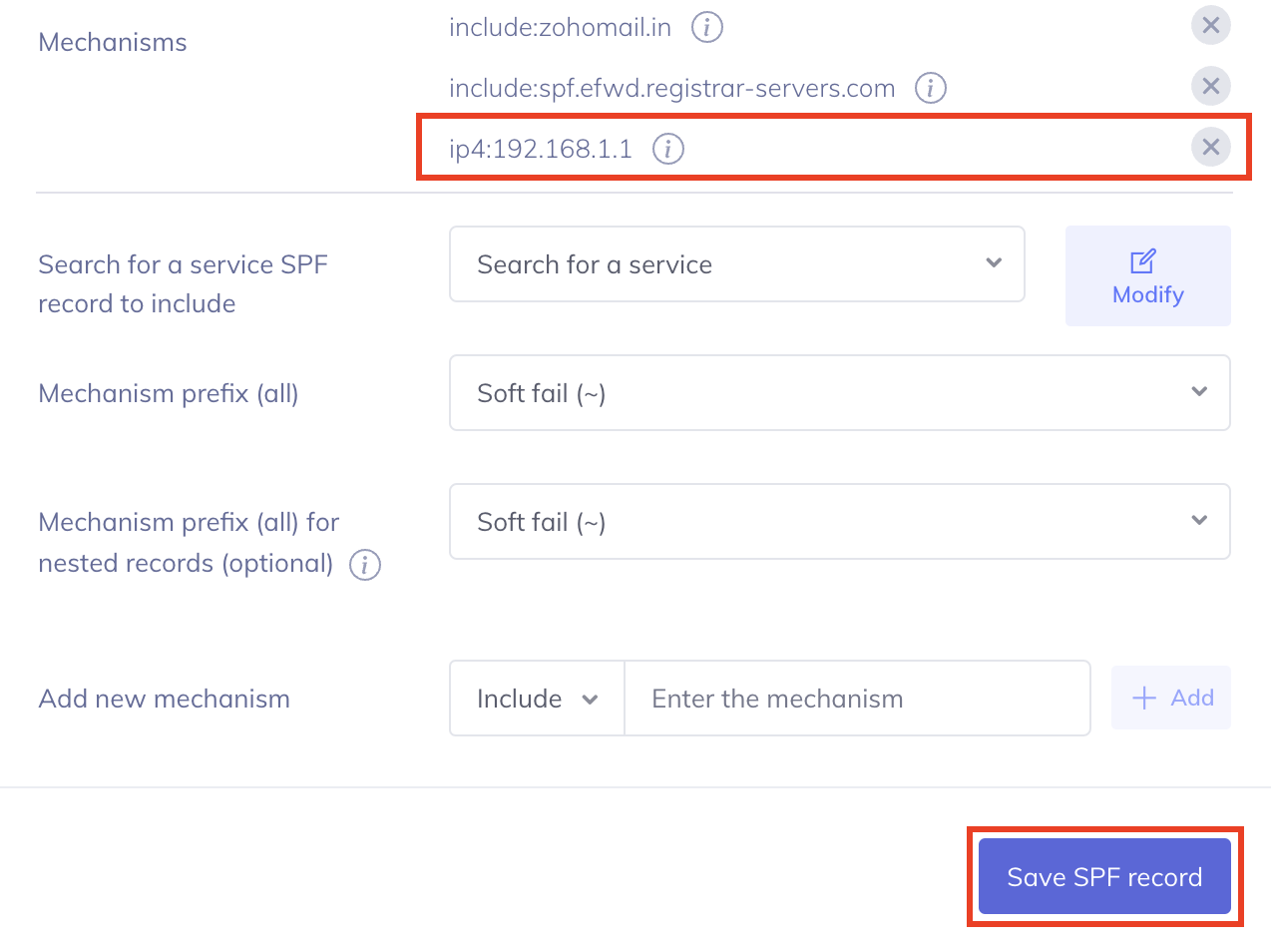
Once you save changes, the changes you made would be reflected in the manually flattened SPF record as shown below:
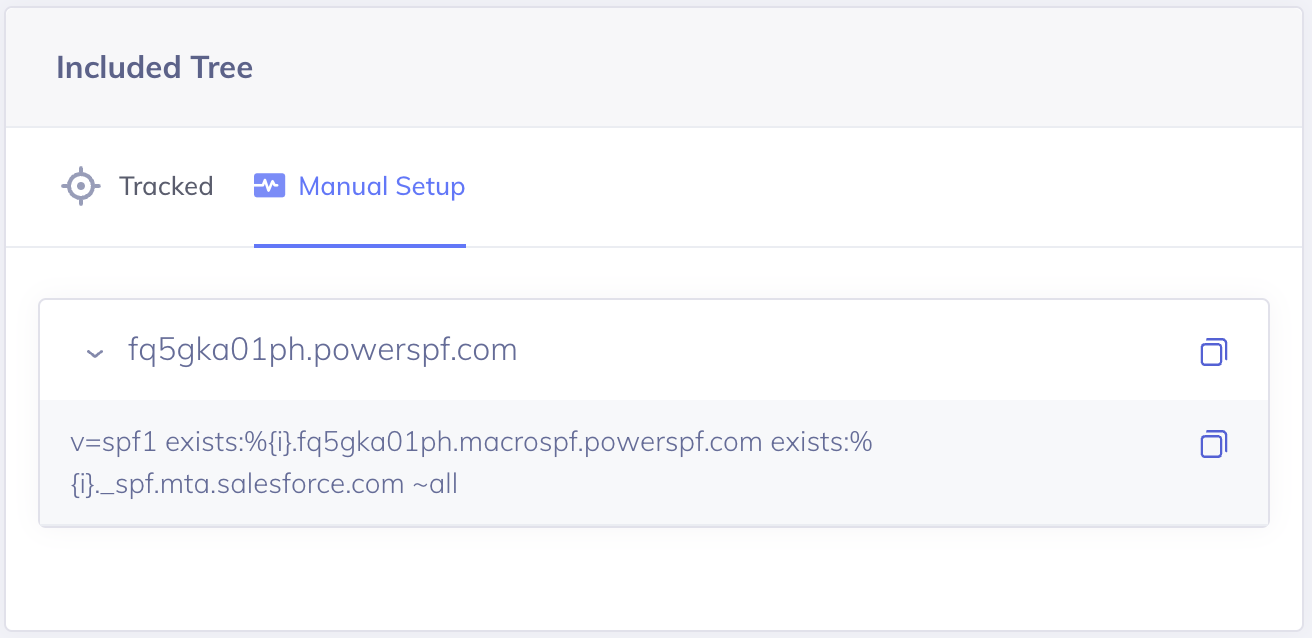
However, as a user, you are NOT supposed to publish this manually flattened SPF record.
Why is manual flattening not recommended?
The problem with this "manual" flattening is that email service providers may change or add to their IP addresses without telling you. This ultimately leads to SPF failure and problems in email delivery. With manual flattening, you need to constantly monitor your service providers for these changes, which is troublesome and not recommended.
Step 9: Click on Automatic Setup and replace your existing SPF record with the automatically generated SPF record. You will find that this SPF record length is much shorter as with Hosted SPF (PowerSPF) we remove all include statements that have nested IP addresses automatically for you, as shown below:
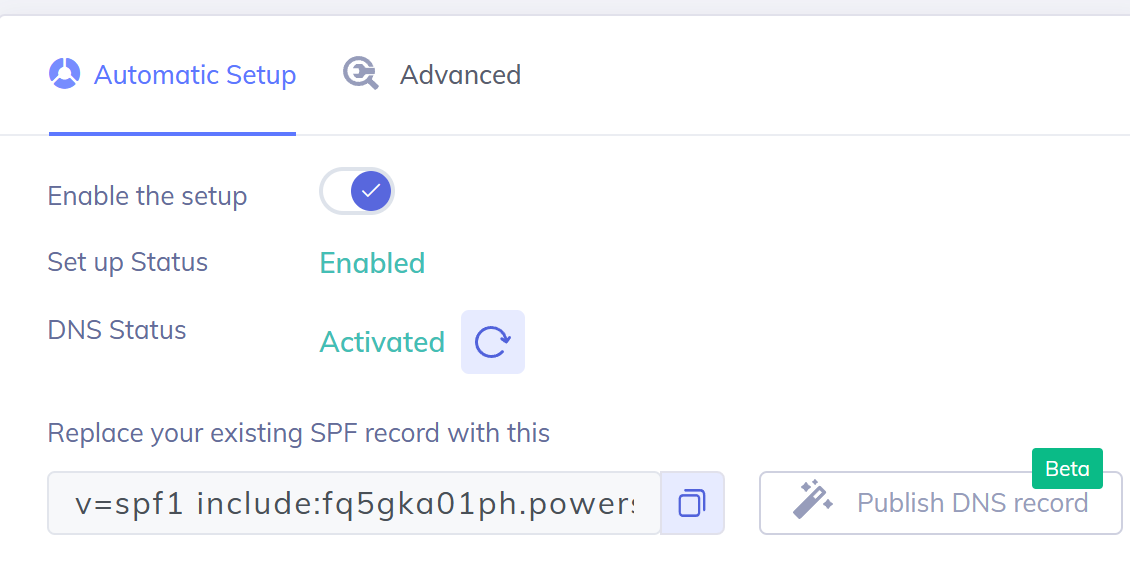
Now, as a user, all you need to do is publish this automatically generated SPF record instead of the manually generated one.
Note that your inbox service providers may change their mechanisms and email-sending IP addresses without notifying you as the user. That is why we in Hosted SPF (PowerSPF) continuously check to ensure that the latest IP addresses are being authorized in your SPF record. Our checks run every 20 minutes and dynamically update your sender policy framework (SPF) record without any requirement or intervention from your side. We help you always stay under 10 DNS lookups to avoid errors, ensuring email authentication and deliverability.

 Standard Email Protocols: SMTP, POP3 & IMAP Free4 m
- What is Email Security? Free4 m
- Email Security Practices Free4 m
- Building an Email Security Compliance Model Free5 m
- Corporate Email Security Checklist Free3 m 30 s
- What is the difference between Inbound email security and outbound email security? Free4 m
- What is Information Security? Free4 m
- Zero Trust Security Model Free3 m
- What is a DNS Lookup? Free4 m
- Understanding the 10 DNS Lookup Limit for SPF Records Free3 m
- SPF Void Lookups Explained Free2 m
- Creating and Optimizing SPF records for your own domain Free4 m
 Video Free2 m
- What is SPF Permerror and How to Fix It Free7 m
- Video Free2 m
- SPF Flattening Free5 m
- SPF Macros Free9 m
- Video Free2 m
- What is SPF Alignment? Free3 m
- How to Set Up Microsoft Office 365 SPF record? Free4 m
- How to Set Up Google Workspace SPF Record? Free2 m
- How to Set Up MailChimp SPF Record? Free3 m
- How to Set Up SendGrid SPF Record? Free2 m
- How to Set Up Salesforce SPF Record? Free3 m
- How to Setup Zoho Mail SPF Record? Free2 m
- What is DKIM Alignment? Free3 m
- DKIM Domain Alignment Failures Free6 m
- How to Set Up DKIM for Microsoft Office 365? Free4 m
- How to Set Up DKIM for Google Workspace? Free3 m
- How to Set Up DKIM for MailChimp? Free4 m
- How to Set Up DKIM for SendGrid? Free3 m
- How to Set Up DKIM for Salesforce? Free3 m
- How to Set Up DKIM for Zoho Mail? Free3 m
- DMARC RFC 9989, 9990 and 9991 Free5 m
- What is DMARC Compliance? Free2 m
- DMARC Compliance Requirements Free2 m
- The Benefits of DMARC Free2 m
- DMARC Configuring Free3 m
- Achieving DMARC Enforcement Free2 m
- DMARC Vs Antispam Solutions Free2 m
- DMARC Identifier Alignment Free2 m
- DMARC sp Tag Exceptions & Uses Free1 m
- Configuring DMARC without DKIM Free3 m
- Configuring DMARC without SPF Free2 m
- DMARC Aggregate Report Views Free3 m
- Video - PowerDMARC Aggregate Reports Free2 m 13 s
- DMARC Forensic Report Views Free2 m
- Video - PowerDMARC Forensic Reports Free
- DMARC Forensic PGP Encryption and Decryption Free2 m
- TLS Report Views Free3 m
- Video - PowerDMARC TLS Reports Free
- PDF/CSV Reports Free2 m
- Video - PowerDMARC PDF/CSV Reports Free1 m 1 s